PDF with forms
Prerequisites
A pair of API key ID and API key secret.
Some credits for the Document Simple Forensic API or the Document Simple API workflow.
If one of the previous steps is missing, then go to First Steps and then to Making the first API Call.
Preparing the PDF form
Often times, the PDF documents contain fields that need to be filled in. These fields are present inside an Acroform within the PDF document.

As shown in the image above, there are several fields that can be inserted inside a form:
Textfield
Checkbox
Radio button
Signature
Even though the PDF format supports other types of fields, the ones mentioned above are the ones supported by Web Trust.
Fields can be required, readonly, or even precompiled with a certain value.
Each field inside a PDF must have a name. We advise you to use unique names, unless you know what you are doing. There are some use cases, where you can reuse names to avoid filling in the same field twice.
Making the call
Ok, let’s get to it. To instruct Web Trust that a PDF needs to be filled in is fairly easy. You just need to set the property compile: true inside the document specification of interest.
Here is an example.
curl "https://api.webtrust.kopjra.com/v1/signatures"
  -X POST
  -d '{"signerFullname":"Luke Skywalker","signatureType":"graphic","isForensic":true,"locale":"en","documents":[{"name":"xwingform.pdf","contentBase64":"PDF_IN_BASE64","signatureFieldsType":"signature","failSignature":"BOTTOM_RIGHT","compile":true}],"otp":{"sms":"+39555555555"}}'
  -H "Accept: application/json"
  -H "Content-Type: application/json"
  -H "Authorization: Basic NjhiOTkxMjEtYWIxNC00YzUwLWFlMzItNDgzZmQ4MWVkNWJkOnlBRG1YTDZ6IzNjVm4tWURPNmJsTWkybGY0MEpNMEdUcFpLVH5+Ujc1eUNEN3ZZVGU2fmJTdTJEOUZwNHFEVjl4RWhtVmRZSw=="
const res = await fetch("https://api.webtrust.kopjra.com/v1/signatures", {
headers: {
"Content-Type": "application/json",
"Accept": "application/json",
"Authorization": "Basic NjhiOTkxMjEtYWIxNC00YzUwLWFlMzItNDgzZmQ4MWVkNWJkOnlBRG1YTDZ6IzNjVm4tWURPNmJsTWkybGY0MEpNMEdUcFpLVH5+Ujc1eUNEN3ZZVGU2fmJTdTJEOUZwNHFEVjl4RWhtVmRZSw==",
},
method: "POST",
body: JSON.stringify({
"signerFullname": "Luke Skywalker",
"signatureType": "graphic",
"isForensic": true,
"locale": "en",
"documents": [
{
"name": "xwingform.pdf",
"contentBase64": "PDF_IN_BASE64",
"signatureFieldsType": "signature",
"failSignature": "BOTTOM_RIGHT",
"compile": true
}
],
"otp": {
"sms": "+39555555555"
}
}),
});
console.log(await res.json());And here you have the response:
{
  id: 2,
  signerFullname: 'Luke Skywalker',
  signatureType: 'graphic',
  hasForcedSignaturePNG: false,
  extraChecks: null,
  assignationExpirationPeriod: 900,
  expirationPeriod: 2592000,
  expiresAt: '2025-04-18T09:13:31.000Z',
  userLandedAt: null,
  userTookoffAt: null,
  currentStatus: 'SUBSCRIBED',
  archetypeId: null,
  createdAt: '2025-03-19T09:13:31.000Z',
  updatedAt: '2025-03-19T09:13:32.000Z',
  tags: null,
  documents: [
    {
      id: 20172,
      name: 'xwingform.pdf',
      isSigned: false,
      signatureFieldsType: 'signature',
      signatureFieldsNames: [],
      tags: null
    }
  ],
  deletedEvidence: false,
  isForensic: true,
  locale: 'en',
  rejectable: true,
  signatureCustomisations: null,
  pades: false,
  fUrl: 'https://api.webtrust.kopjra.com:443/v1/i/eyJhbGciOiJIUzI1NiIsInR5cCI6IkpXVCJ9.eyJpX2lkIjo0MTk2LCJpc3MiOiJodHRwczovL2FwaS5nYXRld2F5LmtvcGpyYS5jb20iLCJhdWQiOiJodHRwczovL2FwaS5nYXRld2F5LmtvcGpyYS5jb20iLCJpYXQiOjE3NDIzNzU2MTIsImV4cCI6MTc0NDk2NzYxMn0.54GC4eLka97Sv-orl2YWan0SiiafpfHMoV5hgEtdaNw'
}
As you can see, there is nothing new in this response. Let’s then go and click on the fUrl.
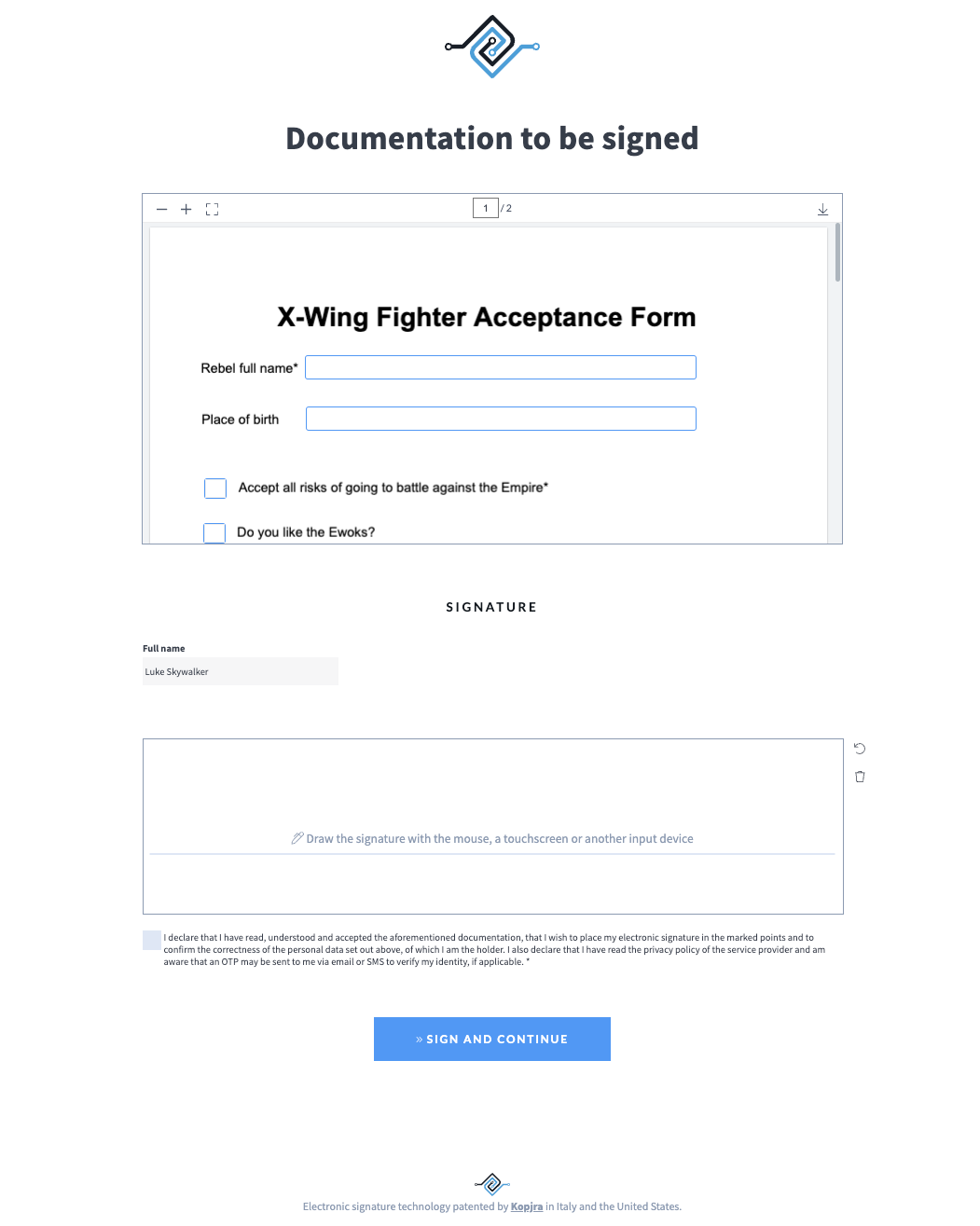
Inside the PDF preview, you can notice the fields that need to be filled in. If you try to Sign and Continue, without filling in all the required fields inside the PDF, you will get an error, and the PDF will automatically scroll to the first empty required field.
After successfully signing the PDF, if you get the signature using the following call:
curl "https://api.webtrust.kopjra.com/v1/signatures/2"
  -X GET
  -H "Accept: application/json"
  -H "Content-Type: application/json"
  -H "Authorization: Basic NjhiOTkxMjEtYWIxNC00YzUwLWFlMzItNDgzZmQ4MWVkNWJkOnlBRG1YTDZ6IzNjVm4tWURPNmJsTWkybGY0MEpNMEdUcFpLVH5+Ujc1eUNEN3ZZVGU2fmJTdTJEOUZwNHFEVjl4RWhtVmRZSw=="
const res = await fetch("https://api.webtrust.kopjra.com/v1/signatures/2", {
headers: {
"Content-Type": "application/json",
"Accept": "application/json",
"Authorization": "Basic NjhiOTkxMjEtYWIxNC00YzUwLWFlMzItNDgzZmQ4MWVkNWJkOnlBRG1YTDZ6IzNjVm4tWURPNmJsTWkybGY0MEpNMEdUcFpLVH5+Ujc1eUNEN3ZZVGU2fmJTdTJEOUZwNHFEVjl4RWhtVmRZSw==",
},
method: "GET",
});
console.log(await res.json());You should get a response containing the following (we are not showing the full response):
{
  id: 4197,
  signerFullname: 'Luke Skywalker',
  signatureType: 'graphic',
  hasForcedSignaturePNG: false,
  extraChecks: null,
  assignationExpirationPeriod: 900,
  expirationPeriod: 2592000,
  expiresAt: '2025-04-18T09:18:11.000Z',
  userLandedAt: '2025-03-19T09:19:46.000Z',
  userTookoffAt: '2025-03-19T09:29:41.000Z',
  currentStatus: 'CONCLUDED',
  archetypeId: null,
  createdAt: '2025-03-19T09:18:11.000Z',
  updatedAt: '2025-03-19T09:30:04.000Z',
  tags: {
    'pdf-20176$c1': 'true',
    'pdf-20176$c2': 'false',
    'pdf-20176$group6': 'cuco',
    'pdf-20176$groupbello': 'ciccio',
    'pdf-20176$text1': 'Luke Skywalker',
    'pdf-20176$text2': 'Tattoine',
  },
  documents: [
    {
      id: 20176,
      name: 'xwingform.pdf',
      isSigned: true,
      signatureFieldsType: 'signature',
      signatureFieldsNames: [],
      tags: null,
      signedDocumentId: 20178
    }
  ],
  deletedEvidence: false,
  isForensic: false,
  locale: 'en',
  rejectable: true,
  signatureCustomisations: null,
  pades: false,
  ....
}
As you can notice from that payload, there is a tags property, and inside that property you can find all the values entered inside the PDF form, for instance: 'pdf-20176$text1': 'Luke Skywalker'. Tag keys have a certain format when referring to PDF form fields.
pdf-DOCUMENT_ID@NAMEThere is always a pdf- prefix followed by the ID of the PDF document, followed by a @ and lastly the name of the field.
Depending on the field type, you will have different values in the tag:
For text fields, there will be a string
For checkboxes, there will be a boolean
For radio buttons, there will be a string referring to the value of the selected option.
Finally, here you have the resulting PDF.

Filling in certain fields
Using compile: true the system will read all the fields inside the PDF and make them available for filling in in the signature environment.
What if we want to fill in only a subset of those fields?
To do so, you need to specify compile as an array of strings, each of which should be the name of a field that you want to fill in. For instance,
...
"compile": ["text1", "c2"]
...
will tell the system that you want to fill in only the fields named text1 and c2.
Even if the fields left out are required, there is no problem during the signature. The system will ignore them even if required.
Selecting certain fields may be useful in cases of multi-signer workflows.
Pre-filling in the form
What if you want to pre-fill in the form with data you have in your systems? Well, good news: you can do this directly in the API call while creating the signature, by setting the compile parameter to an object of the following type:
{
    [key: string]: {
        value?: boolean | string,
        readonly?: boolean
    }
}
Where:
keyis a name of a field in the PDFvalueis what you want to assign to the fieldreadonlyindicates whether the field can be changed while in the signature environment. It isfalseby default.
An example would be:
...
"compile": {
    "text1": {
        "value": "Little Luke",
    },
    "c2": {
        "value": true,
        "readonly": true
    }
}
...
This functionality is an extension of the field selection. Here you not only select the fields to be filled in but also you are pre-setting a value.
If you want all fields to be selected but still want to pre-fill in some of them, you will need to specify all the keys (on for each field) and the ones you don’t want to be filled in; you just need to set their value to undefined.
Disabling filling in
If you set compile to false, undefined or [] then the filling in of the PDF will be disabled.
Was this helpful?
Still need help? Share an idea